Survey Settings Page (Configuring Your Survey)
Last updated: June 18, 2026
Configure your survey's questions, delivery, and activation status from the Settings page.
Who this is for: All users, Admins
Overview
The Survey Settings page is where you build the core of your survey: the questions respondents will see, and the on/off toggle that controls whether the survey is live. It's typically the first place you go after creating a new survey.
Activation
The Active/Inactive toggle at the top of the Settings page controls whether your survey is live. When the survey is active, depending on survey type, eligible recipients will receive their survey via intercept or newly added recipients receive their survey email. When it's inactive, the survey is paused.
Before activating, make sure you've completed:
Adding at least one question
For Email Surveys
Setting the email subject line
Sending a test email to verify delivery and design
For Intercept Surveys
Have configured your intercept
Previewed the survey design
Email Configuration (Skip for URL or Intercepts)
Subject line — Enter the subject line recipients will see in their inbox. Limited to 200 characters. Write something specific and action-oriented; vague subject lines significantly reduce open rates. For example: "How was your experience with your recent return?" outperforms "We'd love your feedback."
Test email — Use the test send option to deliver a copy to your own email address before activating. This lets you verify the survey link works, confirm the subject line looks right, and see exactly what the respondent experience looks like.
Questions
You can add multiple questions to a single survey. There's no hard limit on question count, but shorter surveys with dynamic AI follow-ups enabled on open-text questions consistently outperform longer ones — brevity with targeted follow-ups increases completion rates while ensuring you still get rich answers where it matters.
Managing Questions
Reorder — Drag the six-dot handle on the top left of any question card, or use the up/down arrows on the top right to move it one position at a time.
Delete — Click the trash icon on the top right of the question card.
Each question has the following options:
Question Types
Type | When to Use |
Dynamic AI Follow-Ups
Each question has a toggle to enable Allow AI Follow Up. When enabled, Unwrap may ask the respondent a follow-up question after they answer — but only under two conditions:
The toggle is on for that question
The respondent's answer is low in detail — if the AI determines the response is sufficiently specific and complete, no follow-up is asked. Follow-ups only fire when additional enrichment is warranted.
When a follow-up does trigger, it references the respondent's actual answer and preceding answers to ask a targeted clarifying question. For example, if a respondent writes "the product is uncomfortable," the AI might follow up with "Can you give specific examples or elaborate on how the product was uncomfortable?" Every follow-up is generated uniquely for that response — no two are the same.
Additionally, a net promoter will get a different question from a detractor on a successive question. For example, a promoter who answers "color" would get asked why they liked the color,
This means follow-ups don't add guaranteed length to your survey. A respondent who gives a detailed answer moves on without seeing one at all.
Follow-ups are most valuable on open-text questions. For structured questions like multiple choice or matrix, leave the toggle off.
Company Context System Prompt
You can include a Company Context system prompt on any follow-up-enabled question to give the AI context that shapes how it asks follow-ups. You can find this by clicking Admin Config on the Surveys Dashboard page. Use this to:
Describe the company or product the survey is about ("This survey is for customers of Deckers Outdoor, a footwear brand")
Specify topics to go deeper on ("If the respondent mentions comfort or fit, probe for specific product details")
Specify topics to avoid ("Do not ask follow-up questions about pricing or competitor products")
The system prompt is never shown to respondents — it only influences how the AI frames its follow-up question.
Personalization Parameters
You can personalize question text using dynamic placeholders that pull from recipient data. Use the format {parameter_name} anywhere in a question, where parameter_name matches a column header in your recipient CSV exactly.
Example:
"How satisfied are you with your experience returning {product_name}?"
If the recipient's CSV row includes product_name: Product X, they'll see: "How satisfied are you with your experience returning Product X?"
Rules for parameters:
Parameter names can only contain letters and underscores — no spaces, hyphens, or numbers (e.g., {product_name} is valid; {product name} and {product-name} are not)
The same naming rule applies to metadata keys when using the API — use product_name, not productName or product-name, so keys align with question parameters
Every recipient must have a value for each parameter used — blank values will cause the placeholder to appear literally in the question text
Parameters must match CSV column headers (or API metadata keys) exactly, including capitalization
Question Branching
Branching lets you control what happens after each question based on how the respondent answers. Instead of every respondent seeing the same linear sequence, you can send them down different paths — skipping irrelevant questions, diving deeper on specific answers, or ending the survey early when appropriate.
You can build surveys that converge back to a shared main path, branch into completely separate tracks, or both.
How it works
Each question has a Logic section where you define routing rules. When a respondent submits their answer, Surveys evaluates their response and routes them to the question you've specified. If no rule is set for a question, the survey proceeds to the next question in order.
Unwrap automatically checks for circular logic. If your configuration would cause a respondent to loop indefinitely, the survey will warn you and not save.
Supported question types
Question type | How logic is configured |
|---|---|
Rating (1–10) | Score ranges (e.g., 1–7 → one question, 8–10 → another). An Otherwise fallback handles any ranges not explicitly covered. |
Star rating | Score ranges, same as above |
Single choice | One destination per answer option |
Yes/No | One destination each for Yes and No |
Setting up logic rules
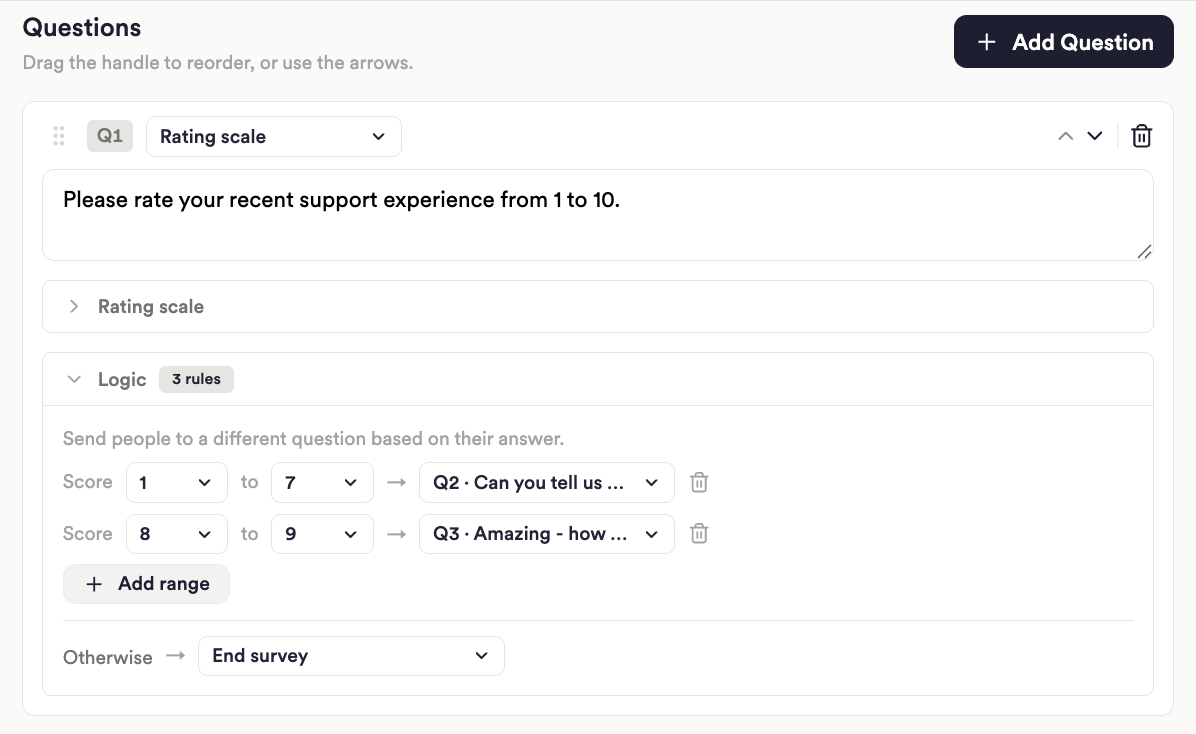
Open your survey and select a question.
Expand the Logic section below the question.
For each answer or score range, choose the destination:
A specific question — routes to that question
End survey — ends the survey immediately for this respondent
For rating questions, click + Add range to define additional score ranges, and set the Otherwise fallback for any scores not covered.
Save your survey. If your rules create a loop, Surveys will flag it before saving.
Limitations
Logic rules route based on a single answer at a time. Multi-condition logic is not yet supported.
Answer values from earlier questions cannot yet be passed as parameters to later questions.
A canvas/graph visualization for complex surveys is planned for a future release.
Best Practices
Enable dynamic follow-ups on your open-text question. This is the single highest-leverage setting in Surveys — it turns a brief comment into a detailed conversation without adding survey length.
Write your rating question first, open text second. Respondents who give a score are primed to explain it when asked immediately after.
Test with your own email address before adding real recipients. You can't un-send an email.
Use personalization parameters to increase relevance. A question referencing the specific product or interaction a customer had will feel more relevant and get more detailed responses.
Limitations
Question edits made after recipients have been added do not apply to those recipients — they receive a snapshot of the survey at the time they were added.
FAQ
Q: Can I reorder questions after adding them?
A: Yes. Drag the six-dot handle on the top left of any question card to reposition it, or use the up/down arrows on the top right to move it one position at a time.
Q: How many questions can I add to a single survey?
A: There's no hard limit, but shorter surveys with dynamic AI follow-ups enabled on open-text questions consistently outperform longer ones. Aim for brevity — let the AI handle depth on the questions where it matters, rather than adding more questions to compensate.
Q: What does the dynamic follow-up question look like to the respondent?
A: After the respondent submits their answer to a follow-up-enabled question, they see a new text field appear with a follow-up question generated specifically for their response. It feels conversational — not like a separate survey page.
Q: Can I use the same survey for multiple recipient batches over time?
A: Yes. You can add new recipients to an active survey at any time. Each batch receives the version of the survey that exists when they're added.
Q: How do I set the Sender Name and Reply-To Email for my Surveys?
A: Configure the Sender Name and Reply-To Email under Global Settings on the Surveys Dashboard
Q: How do I configure the company context "system prompt" to govern AI follow-ups?
A: You can find and customize this by clicking Admin Config on the Surveys Dashboard page.
Q: What happens if I don't set a logic rule on a question?
A: The survey proceeds to the next question in order. Logic rules are optional — you only need to configure them on questions where you want to change the default flow.
Q: Can I route a respondent back to an earlier question?
A: Yes, you can point any rule to any question in the survey. However, if the configuration would cause a respondent to loop indefinitely, Surveys will block you from saving until you resolve it.
Q: What does the loop error mean and how do I fix it?
A: It means your rules create a path that has no exit — a respondent would cycle through the same questions without ever reaching the end. Check the routing on each question in the loop and make sure at least one path leads forward or to End survey.
Q: Can I use branching on every question type?
A: Branching is supported on rating, star rating, single choice, and Yes/No questions. Open-ended text questions do not currently support logic rules.