Getting Started with Unwrap Surveys
Last updated: August 11, 2026
Send your first survey and see results in Unwrap in under 30 minutes.
Who this is for: All users, Admins
Overview
Unwrap Surveys lets you collect structured customer feedback — NPS, CSAT, open-ended responses, and more — directly from the Unwrap platform. What sets it apart from standalone survey tools is that every response flows back into your Unwrap data layer, where it's analyzed alongside all your other feedback signals. You don't need to export anything or connect an integration — it's all in one place.
This article walks you through creating your first survey end to end. For more information on any section, there are dedicated support articles linked throughout to add detail.
Prerequisites
An active Unwrap account
At least one View set up in your organization (a View is a workspace in Unwrap that organizes feedback by product, team, or use case — survey responses connect to a View so they're analyzed alongside your other feedback)
Admin or Survey Admin access (both can create surveys)
How It Works
When you create a survey in Unwrap, you configure the questions, design the respondent experience, and add recipients — either by uploading a CSV, delivering a widget survey via website installation, or sending recipients programmatically via API. Once the survey is active, recipients receive an email with a link to a branded, desktop and mobile-friendly survey page. Their responses are processed by Unwrap's AI in real time and surface alongside your other feedback in any View you connect the survey to.
Every survey supports dynamic AI follow-ups on open-text questions. When you enable the Allow AI Follow Up toggle on a question, Unwrap evaluates each response and — if the answer lacks sufficient detail — automatically generates a targeted clarifying question based on what the respondent said. If the response is already detailed, no follow-up is asked. You don't write these follow-ups; the AI generates them uniquely for each response.
You can also add Company Context” in the Admin Config section of the Surveys Dashboard. This allows you to provide context about your organization that will be used to generate dynamic AI follow-up questions for survey recipients. You can use this to give general information about what products you provide, what you’d like to dig deeper on (e.g., support issues, product durability, competitor references, etc.) or topics to avoid (e.g., claims of fraudulent activity).
Survey Types
There are 3 types of surveys:
Delivered to recipients email inboxes. Recipients populated via CSV upload or API. Can include metadata parameters in either upload method.
URL
Link with ability to append metadata parameters.
Widget
On-site survey drawer or pop out, delivered via Installation.
Step 1: Create and Configure your Survey
Refer to each survey type's creation instructions here
Step 2: Connect Your Survey to a View
Do this before activating. Responses that arrive before the connection is made are still stored, but connecting first ensures every response is analyzed in Unwrap from the start.
Click the Recipients tab, then click Add Survey to View.
Select the View where you want responses to appear.
Once connected, responses are automatically processed by Unwrap's NLP and will surface in that View in real time.
Alternatively, you can connect via the View's Integrations tab and select Unwrap Surveys from the available options.
Step 3: Activate Your Survey
Return to the Settings tab
Toggle the survey to Active. The survey is now live — recipients who have been added will receive their email within a few minutes, though during high-volume periods delivery may take up to a few hours.
To pause at any time, toggle the survey back to Inactive.
Step 4: Analyze Your Survey Responses
You can analyze survey responses in the feedback or taxonomy sections like you would any other feedback. This includes filters on metadata and other attributes like source or survey title.
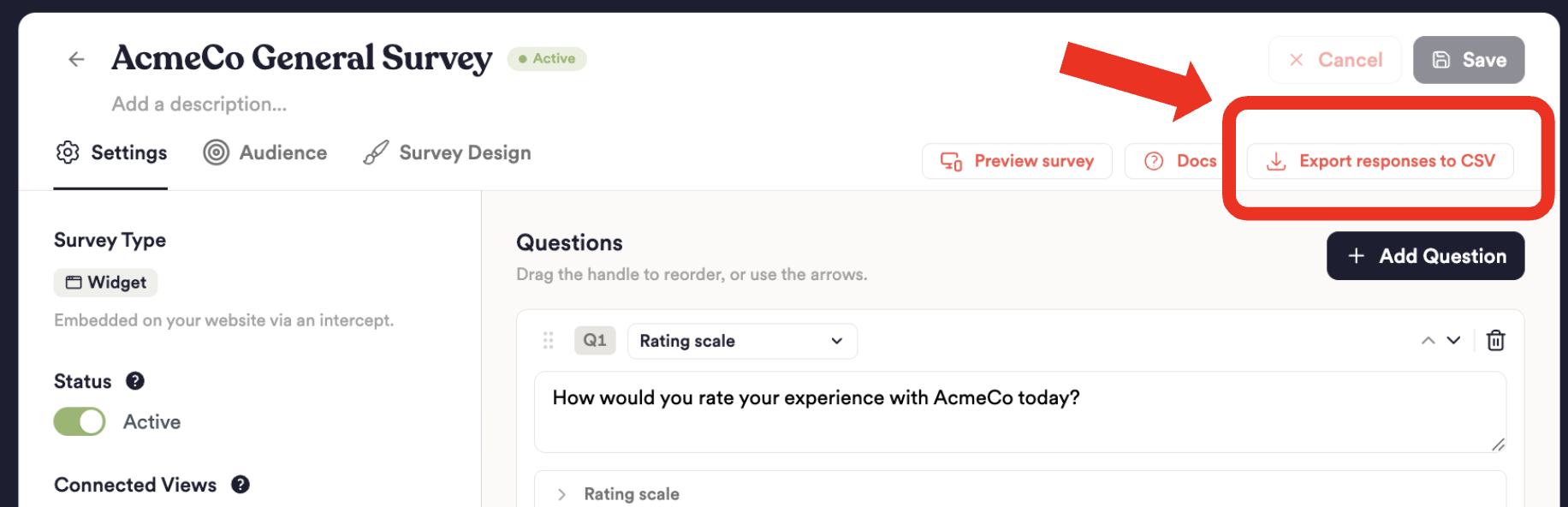
You can also export responses to CSV by going to the settings of the survey in question and exporting using the button in the top right
Survey Status Reference
Status | Badge | What It Means |
Draft | Yellow | Survey is being set up. Not yet active. |
Active | Green | Live — collecting responses. |
Inactive | Gray | Paused. No new responses accepted. |
Best Practices
Send a test email before activating. It takes 30 seconds and prevents mistakes that are hard to undo once recipients are notified.
Keep your first survey short. One or two questions with dynamic follow-ups enabled will outperform a long static form. Let the AI do the work of going deeper.
Use descriptive survey names. You'll accumulate surveys quickly — names like "Q2 Post-Purchase NPS" age better than "Survey 1."
Connect your survey to a View before activating. Responses that arrive before the connection is made still get stored, but making the connection early ensures you see results from the first response.
Use the API for event-triggered delivery. If your use case involves a specific customer action (purchase, return, ticket closure), programmatic delivery ensures the survey fires at exactly the right moment.
Limitations
Recipients receive a snapshot of the survey at the time they're added. Question edits made after adding recipients will not apply to those recipients' surveys.
The mobile SDK is not yet available. For webapp survey delivery, use installations via the JavaScript widget.
FAQ
Q: Can I edit a survey after it's active?
A: Yes, but changes to questions won't apply to recipients who were already added. New recipients added after the change will receive the updated version.
Q: How quickly do recipients receive their survey?
A: Most recipients receive their email within a few minutes of being added to an active survey. During high-volume periods, delivery may take up to a few hours.
Q: Can I use Unwrap Surveys without connecting it to a View?
A: Yes — you can collect responses without connecting to a View. But connecting to a View is what enables Unwrap's AI to analyze your survey responses alongside the rest of your feedback data, which is where the post-collection value is.
Q: Do dynamic AI follow-ups count as separate questions in the response?
A: Yes. Each follow-up response is stored as a separate question-and-answer pair in the output, so you can analyze follow-up responses independently, but you can treat follow up responses as the natural extension of the preceding question, i.e., the ideally detailed response to the initial question.
Q: Can I send a survey to the same recipient more than once?
A: Avoid uploading duplicate email addresses in a single CSV — it will result in multiple survey invitations to the same person. For recurring surveys (e.g., quarterly NPS), create a new survey each time rather than re-adding recipients to an existing one.